Notebooks
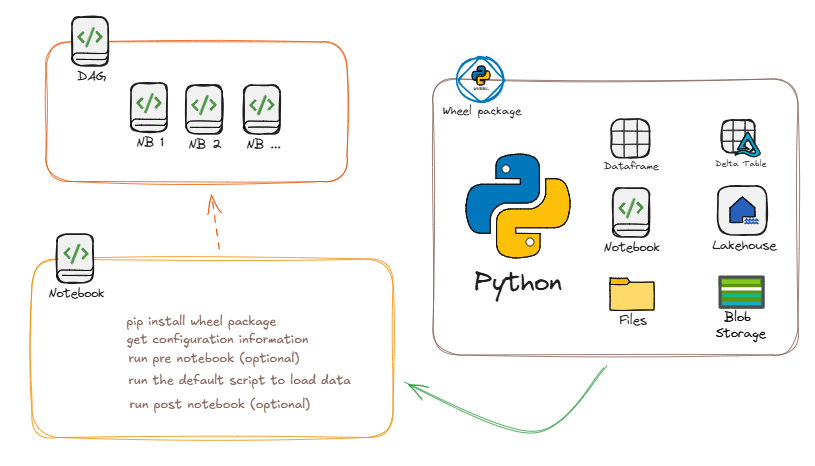
EasyFabric relies (almost) solely on notebooks for loading and processing data into the different stages of the fabric workspace.
Default notebooks
EasyFabric comes with a couple of notebooks:
- DAG_Complete
- DAG_Loader_Bronze
- DAG_Loader_Silver
- DAG_Gold
- DAG_Tabular
- Load_Bronze
- Load_Silver
These notebooks depend on the wheel package of EasyFabric.
You can open a notebook and run it in the webbrowser as usual. Imagine you want to load a table from Bronze to Silver, based on the settings of the object named MyTable from source MySource.
Run a notebook: Load_Silver
Steps to follow when using the direct notebook approach:
- Open Load_Silver
- Go to the parameter cell (right corner has the word 'Paramters')
- Replace
object_yaml_filewith the desired path to the object from the Files section of the Meta lakehouseA place where you store both "raw" data (like files) and "organized" data (like tables). It combines the best of a File Cabinet and a Database. - Run all
What's happening during the run?
- A session is started
- The EasyFabric wheel package is installed
- The parameters are set
- The configmanager is set, based on the default yamlA simple way to write configurations. It's basically a list that computers can read easily. config file from the Meta lakehouse
- The configmanager and the tablefile are used to run the load_data_silver.run method
- Info logging is displayed in the notebook, while running.
- Logfile is saved to the Meta lakehouse and to a table in the Meta lakehouse
Run a notebook from a new custom notebook (preferred)
You can also open a new notebook and call an existing notebook with the following Python script:
# Load bronze table via DAG runMultiple
object_yaml_file = "Files/Objects/MySource/MyTable.yaml"

DAG = {
    "activities": [
        {
            "name": "Load_Bronze_1",
            "path": "Load_Bronze",
            "timeoutPerCellInSeconds": 900, # max timeout for each cell, default to 90 seconds
            "args": {"object_yaml_file": object_yaml_file},
        }]
}

notebookutils.notebook.runMultiple(DAG)
Run a DAG notebook: DAG_Loader_Bronze and DAG_Loader_Silver
Loading a single item is straightforward, but in real-world scenarios, you often need to load multiple items into your lakehouses. This is where DAG (Directed Acyclic Graph) becomes valuable. Using DAG_Loader_Bronze and DAG_Loader_Silver, you can orchestrate multiple loading operations simultaneously. These notebooks initiate a Load_Bronze respectively Load_Silver run for each object present in the specified parameter folder, wave by wave on a thread pool of max_concurrent workers. On the Spark template the children share the loader's Spark session (notebookutils.notebook.run); on the Python template (2 vCores) every child becomes its own Fabric job (run_notebook), which is the cheaper choice when the orchestrator mostly waits. DAG_Complete chains both layers plus Gold and Tabular in one run. See Loading data - hands-on for the parameters.
DAG in Microsoft Fabric
- DAG (Directed Acyclic Graph) represents a workflow structure in Microsoft FabricAn all-in-one data and analytics platform from Microsoft. Think of it as a "digital warehouse" for all your company's information.'s data pipelines
- It's a collection of tasks/activities connected in a way that forms a directed flow without cycles
- In Fabric, DAGs enable orchestration of data workflows, notebooks, and pipelineAn automated "conveyor belt" that moves data from one place to another or performs a task automatically. activities
- Each node in a DAG represents a task, while edges show dependencies between tasks
- DAGs ensure tasks execute in the correct order while preventing circular dependencies